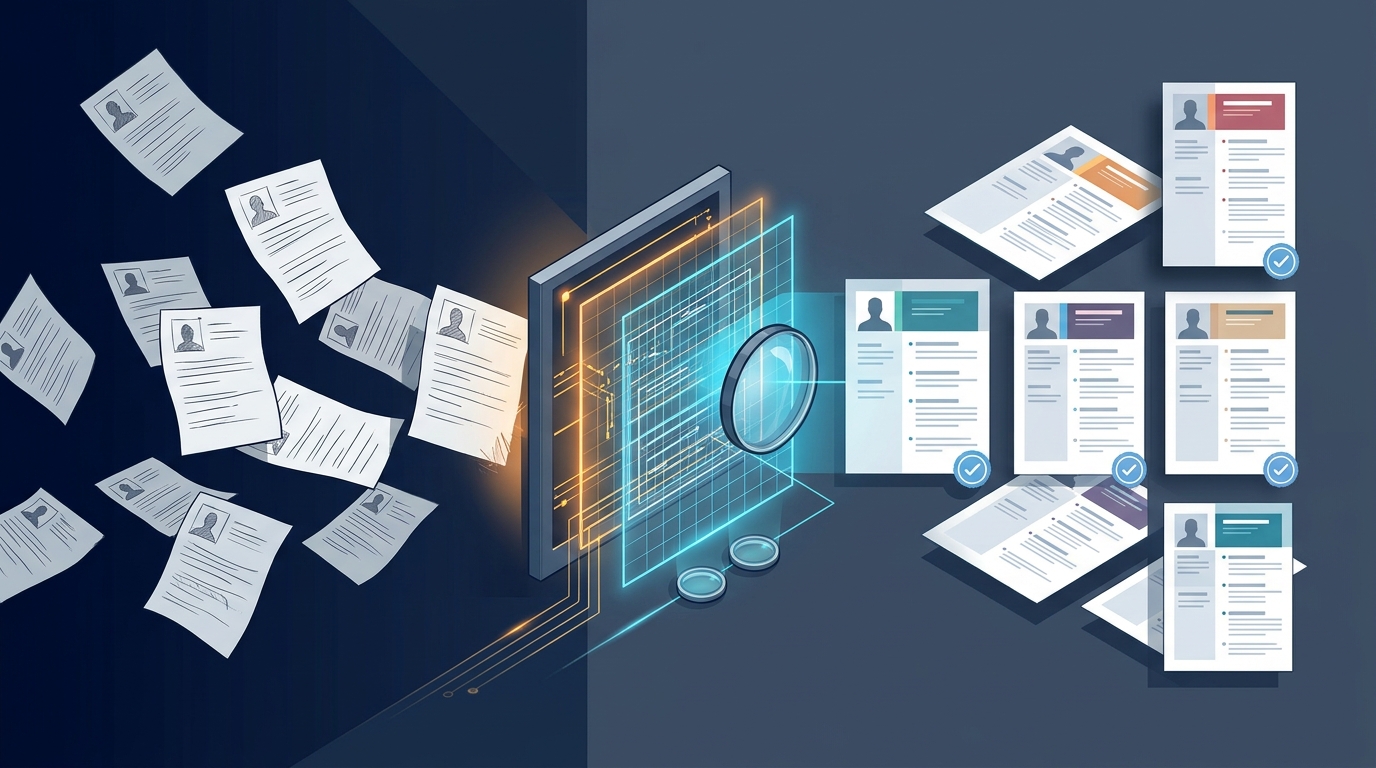

Resume formatting
Convert a PDF resume to a client-template DOCX (without rewriting it)

Fieldglass and Beeline still want a Word file. Candidates still send a PDF from a phone, Canva, or “Download as PDF” on LinkedIn. If you open that PDF in Word and hit Save As, you inherit broken columns, missing dates, and a header the client will reject.
Conversion is not formatting
- Conversion — PDF bytes become an editable file. Layout is leftover.
- Formatting — name, dates, skills, and bullets land on the client master the account already trusts.
- Rewrite — changing titles or inventing a summary. Do not do this. The HM will compare packets.
The desk job is the middle one. Keep wording identical. Let the template own fonts, margins, and section order. Export DOCX because that is what the VMS accepts — not because Word is prettier.
A short PDF-to-submittal order
- Parse first. If dates or the employer line are wrong, call the candidate before you format.
- Match against this JD. A clean DOCX on a miss is wasted credits.
- Run Resume Formatter onto the named client template — USA Default when they have not named one.
- Download DOCX. Attach that file. Do not screenshot the PDF back into the portal.
If the PDF will not parse, ask for a Word original. Do not retype a six-page consulting CV from a scan. And if the req is C2C-only or C2C-blocked, settle that in the employment-type read before you spend a format credit.
US staffing desk audit: Convert a PDF resume to a client-template DOCX (without rewriting it)
When a US IT staffing desk submits a packet into SAP Fieldglass, Beeline, Magnit, or Pontoon, the MSP coordinator spends less than 45 seconds checking document structure before forwarding to the hiring manager. If your DOCX has broken floating text boxes from a PDF conversion, unredacted candidate contact lines on a blind req, or inconsistent date formatting across contract stints, the packet gets dispositioned before technical review.
- Zero-rewrite content integrity — Never let generic AI chatbots paraphrase a candidate’s project bullets for
convert pdf resume to client docx. Enterprise compliance teams compare the submitted DOCX against the candidate’s LinkedIn and interview answers; use Resume Formatter to lock original wording while standardizing typography. - 1-click blind PII redaction — Strip personal phone numbers, personal Gmail addresses, street addresses, and LinkedIn URLs when submitting through Tier-1 implementation partners (
TCS,Wipro,Infosys,Cognizant) or blind MSP portals. - 1-page submittal cover sheet — Prepend a structured cover page with candidate full name, current location, visa/work authorization (
USC,GC,H1B,H4-EAD,TN), bill rate, availability, and a verified skills matrix. - Template comparison benchmark — Compare deterministic DOCX formatting against legacy tools in our iReformat Alternative, Allsorter Alternative, and ChatGPT Resume Formatting Alternative guides.
Step-by-step SOP for high-volume recruiting teams
Standardize this workflow across your onshore account managers and offshore night-shift sourcers so every submittal packet leaves the desk in under 90 seconds:
- Step 1: Verify chronology & net tenure — Run the raw PDF/DOCX through Experience Calculator to deduplicate overlapping contract dates and flag employment gaps exceeding 60 days.
- Step 2: Score against the requisition — Check mandatory vs. nice-to-have skills in Resume Matcher so you only format candidates who clear the client’s minimum years-of-experience bar.
- Step 3: Render the branded client DOCX — Select your agency master template or client preset (
USA Default,Ametek,Google,Microsoft,TCS,Wipro) in Resume Formatter, toggle blind masking if required, and download the editable Word file. - Step 4: Attach the 30-second pitch — Generate an evidence-backed submittal note in Recruiter Summary citing exact employers and project dates.
Enorexa Recruiter
Try the tool this article is about — upload or paste, then copy or download. No candidate database.
Format PDF to DOCX